
Within the Optimity app, we have implemented a feature that allows you to change your phone number directly from the app.
In order to do this, you will need to complete the following steps:
1. Access your “Profile” menu by tapping on your profile icon in the top left corner of the app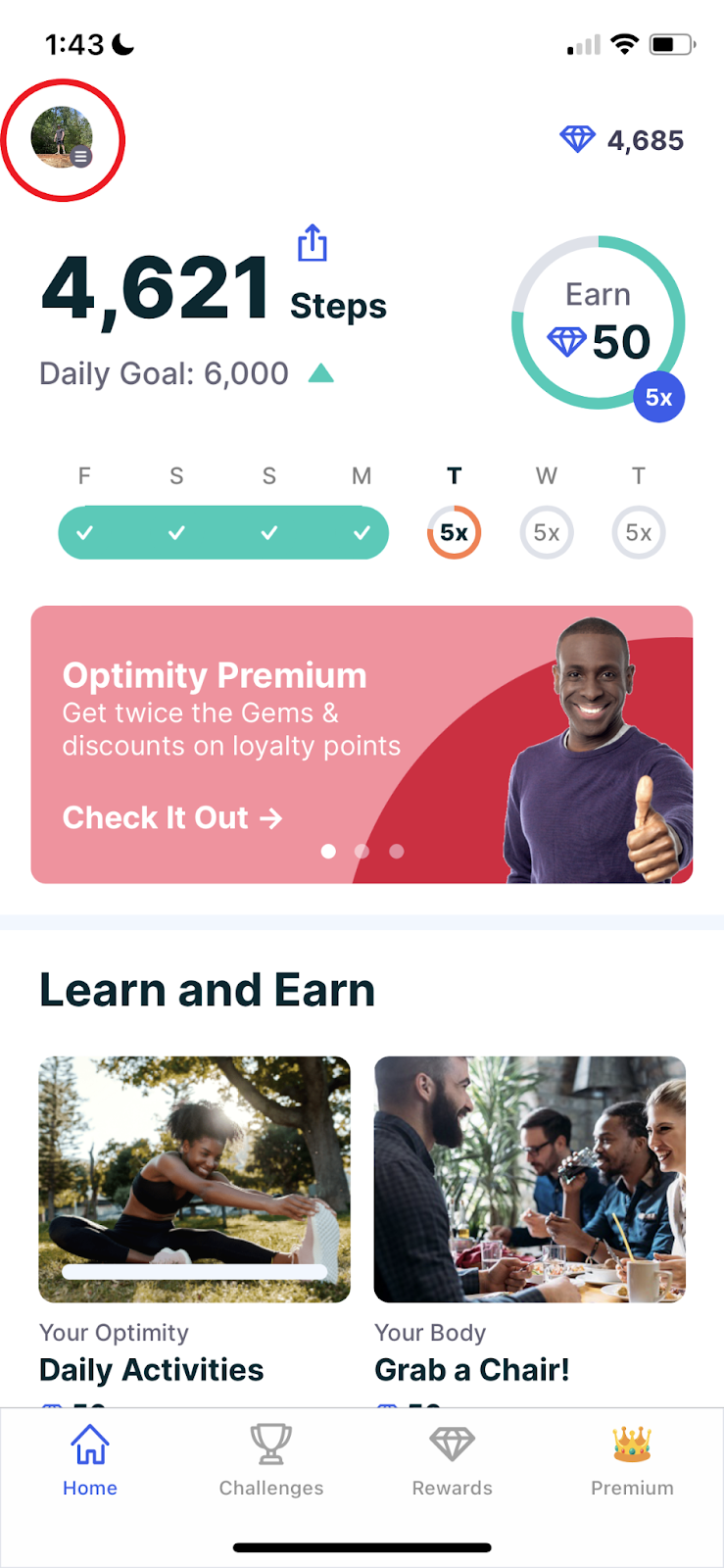
2. Tap on the “Account” option
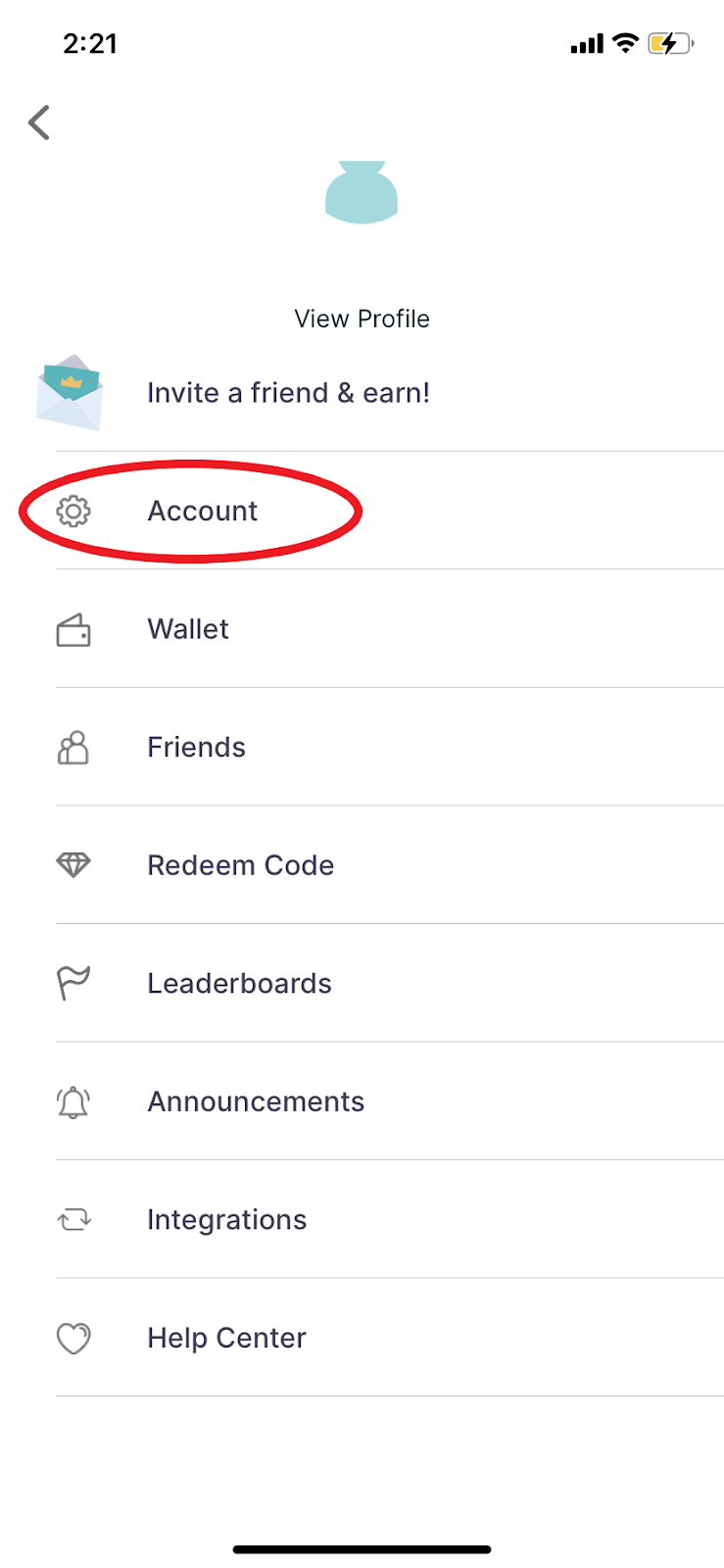
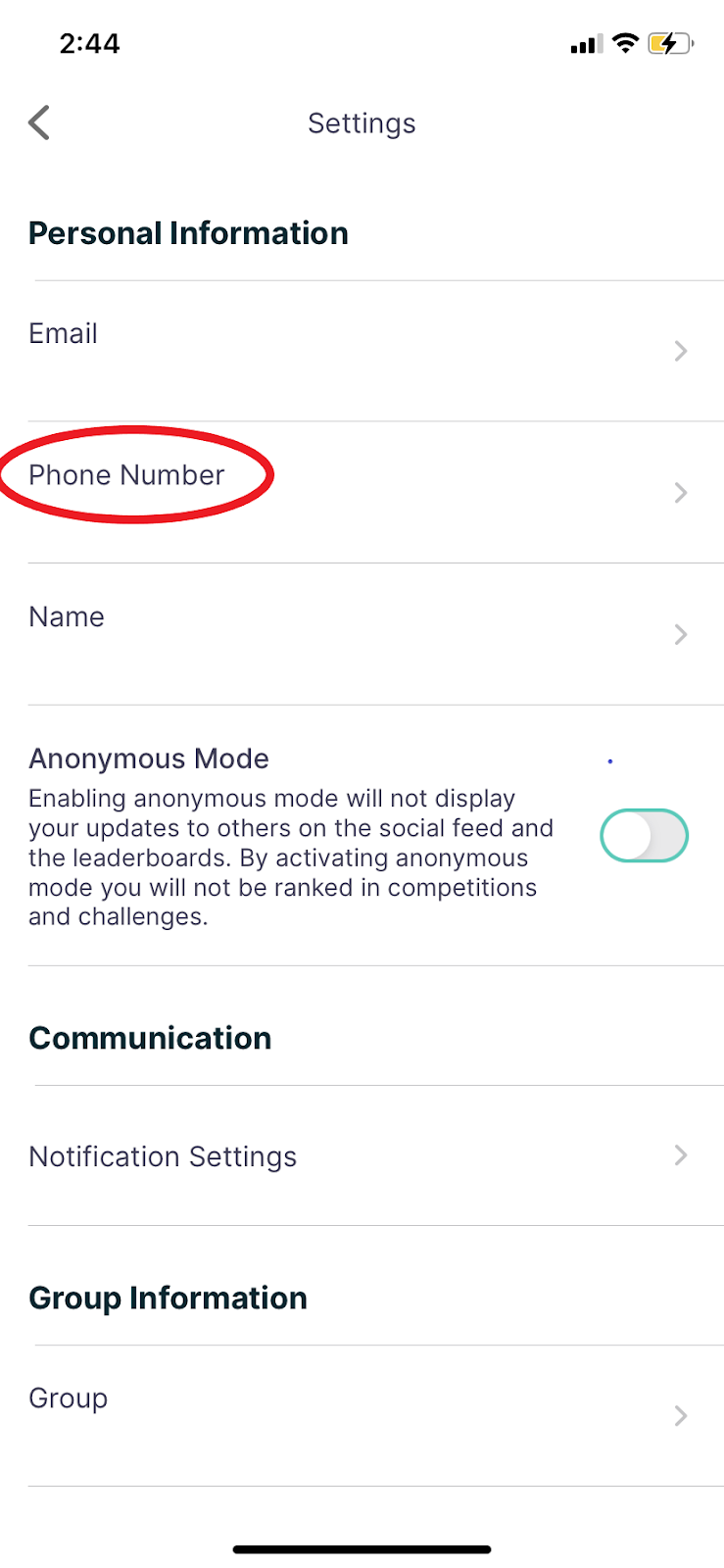
3. This should redirect you to a page containing all of your personal information including your phone number
4. Once on this page, tap your phone number to edit it
5. From here, you can manually change your phone number to your new number
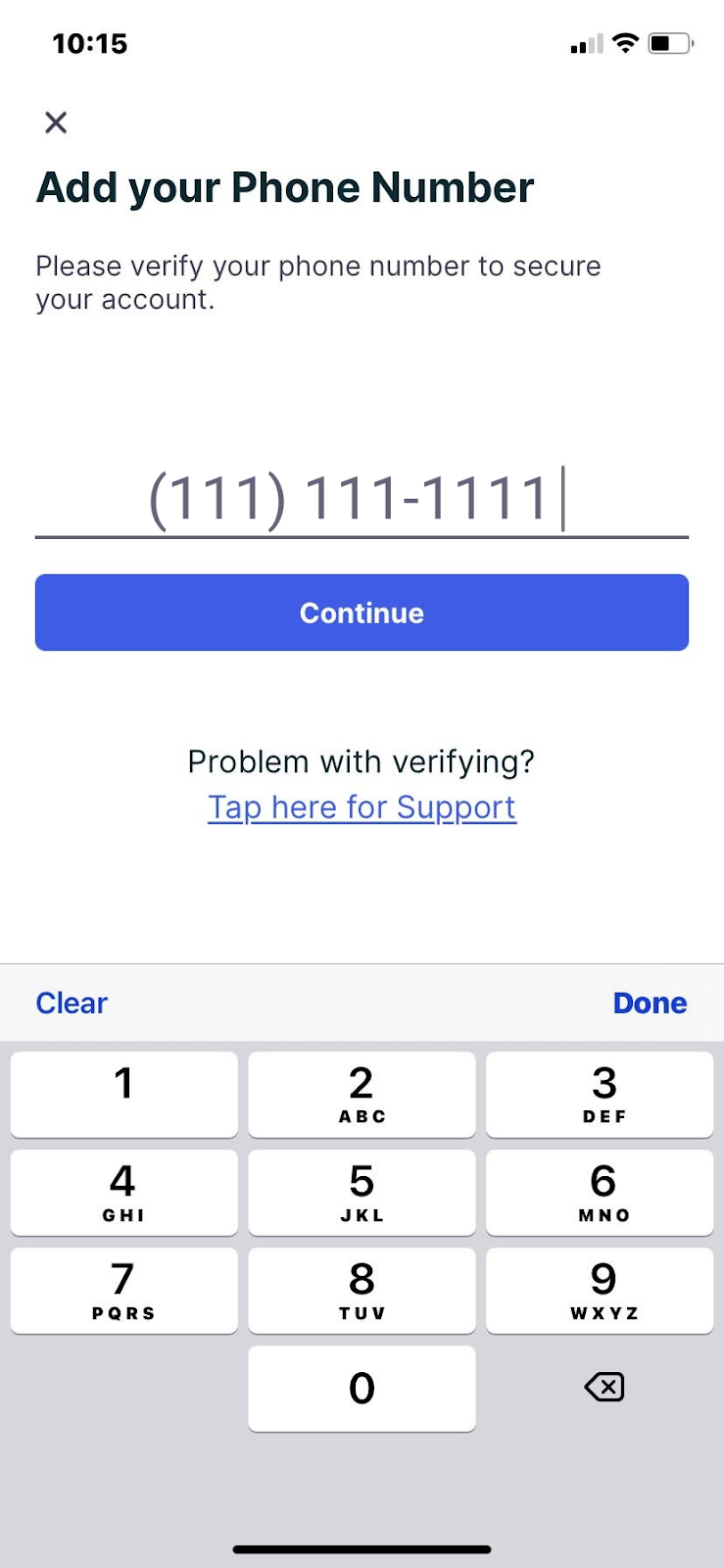
6. Once your new phone number is entered, click on the “Continue” button
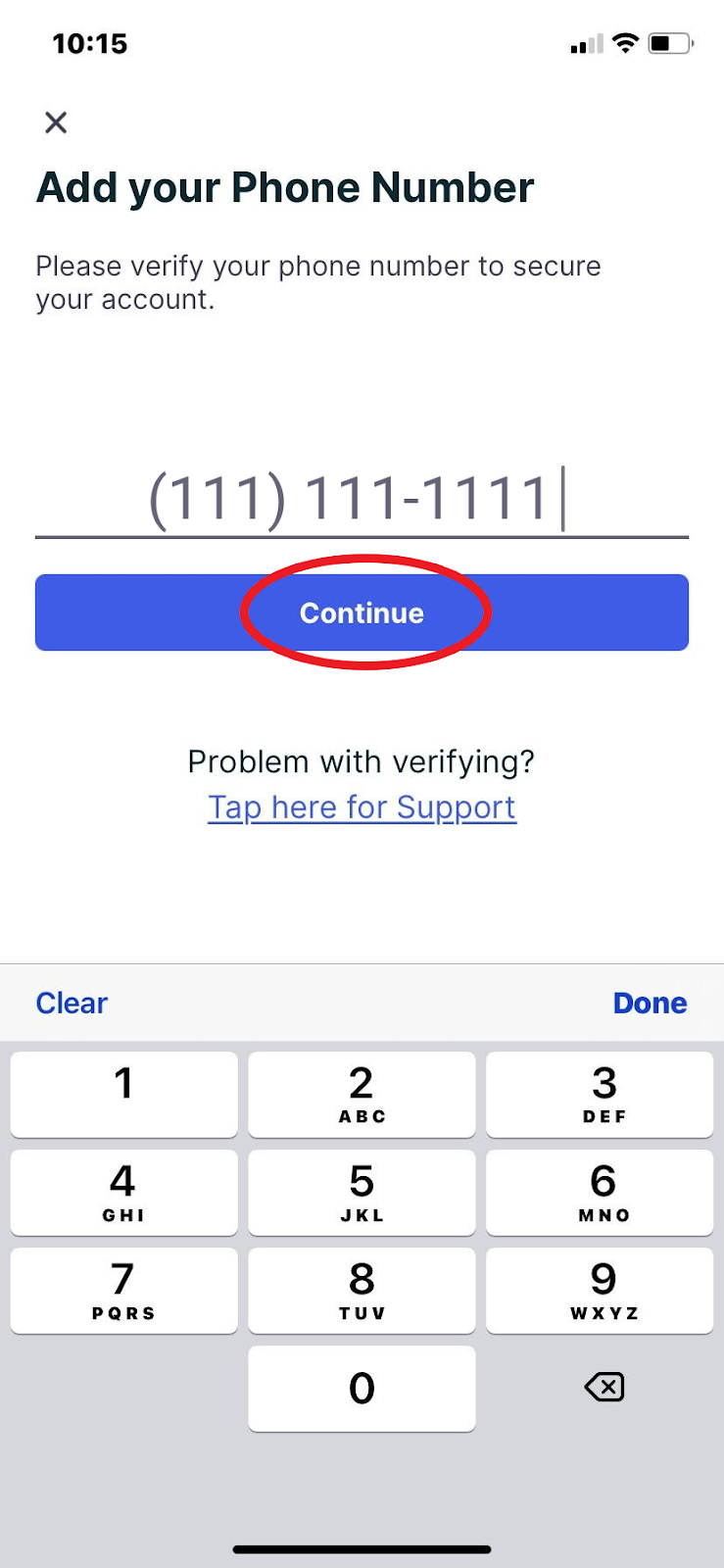
7. Verify your new phone number, and you’re good to go!
Feel free to reach out to Optimity Support at support@myoptimity.com for any further assistance.
Happy Stepping!
Team Optimity
Comments
0 comments
Please sign in to leave a comment.