
Hey there! In addition to being able to manage notifications within the Settings app on your device, the Optimity app allows you even more control over the notifications that you get from us.
We’ll walk you through both in this article:
Modifying notifications for the entire Optimity app:
IOS:
1. Access your “Settings” app from your device’s home screen
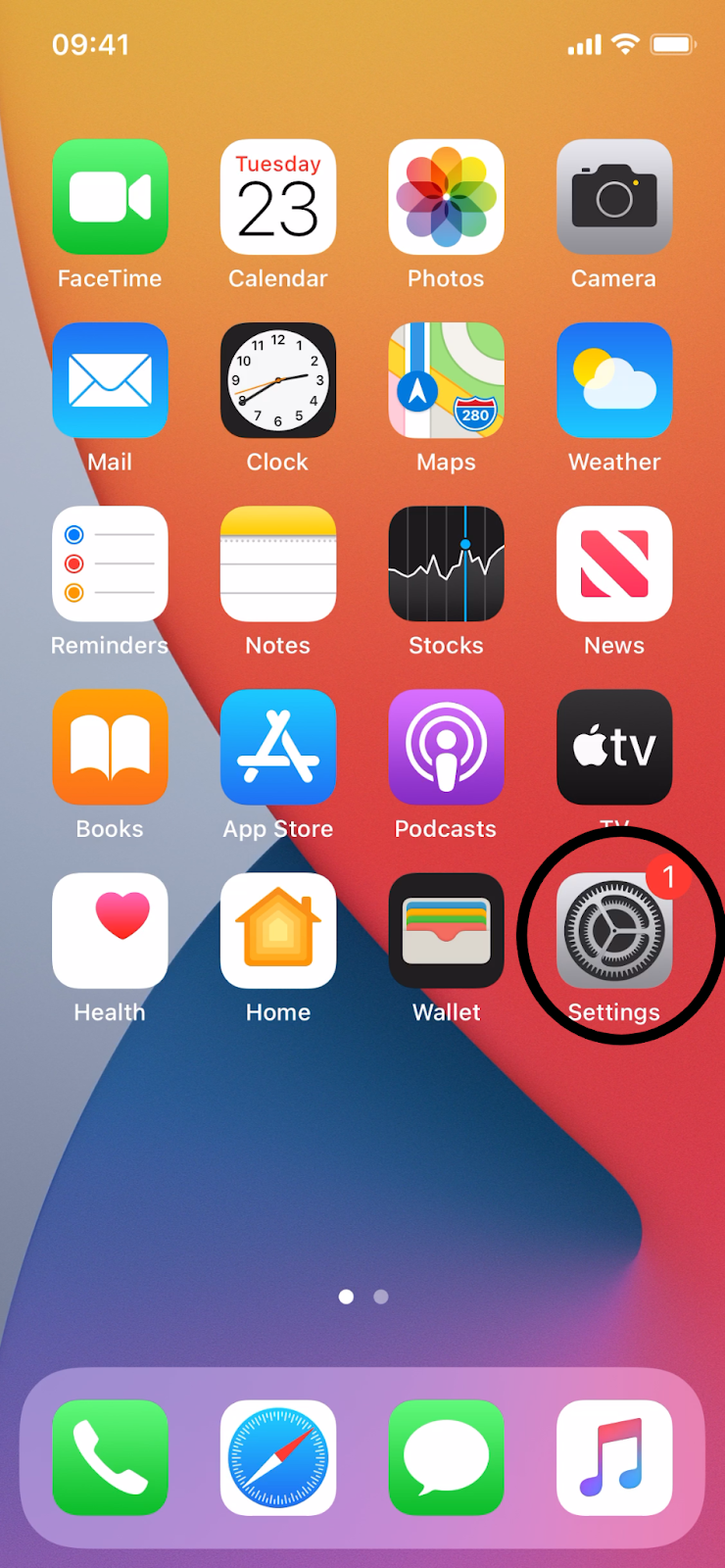
2. Locate and tap on the “Notifications” option within the “Settings” app
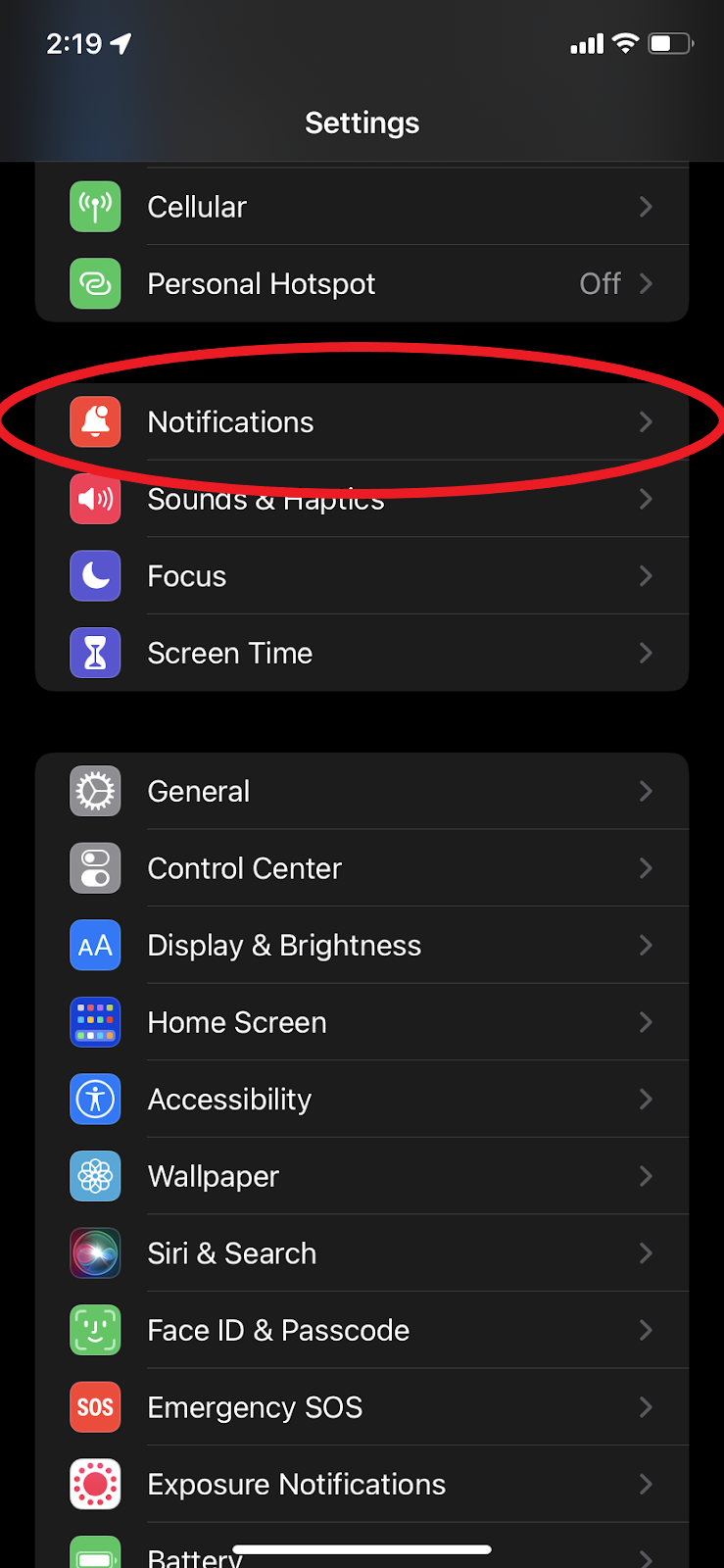
3. Within this section, locate and click on the notification settings for the Optimity app
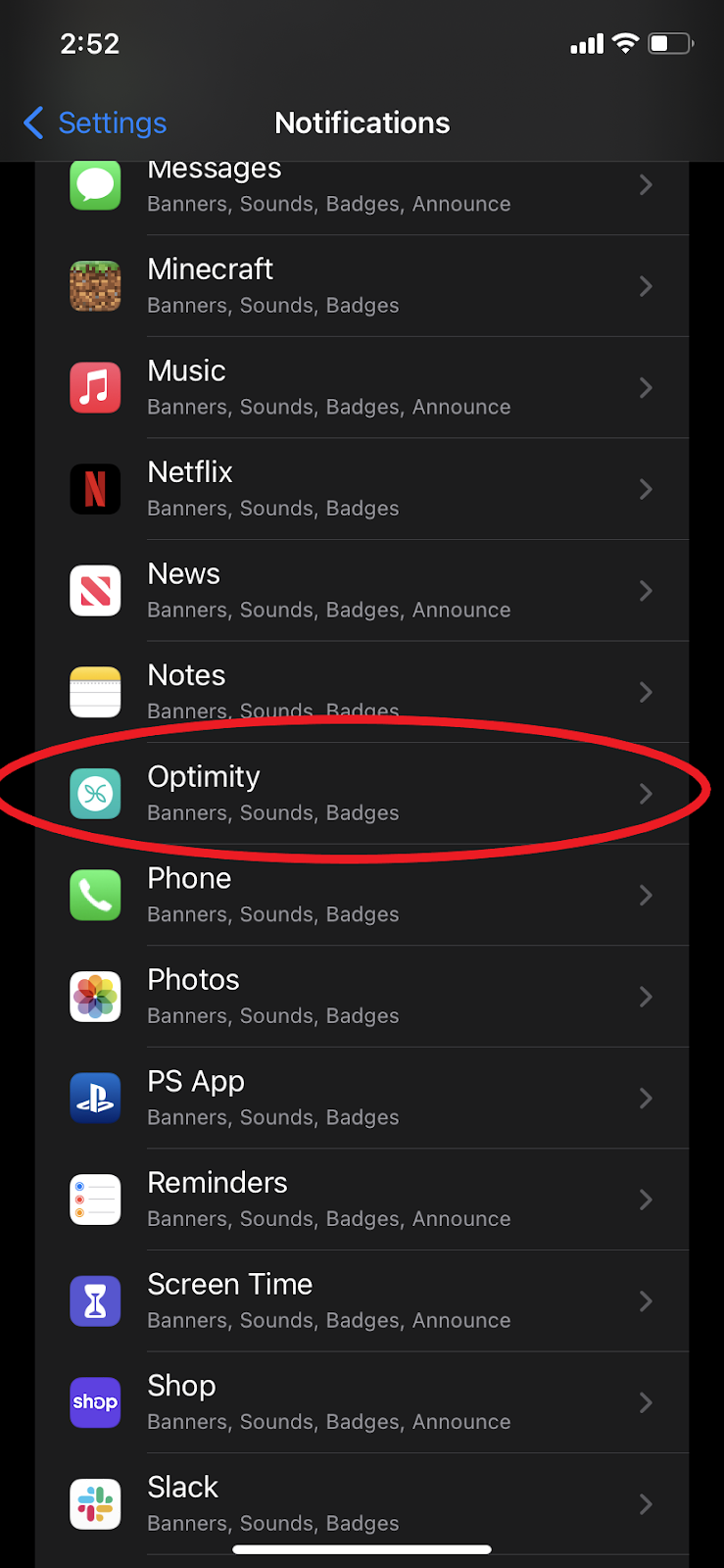
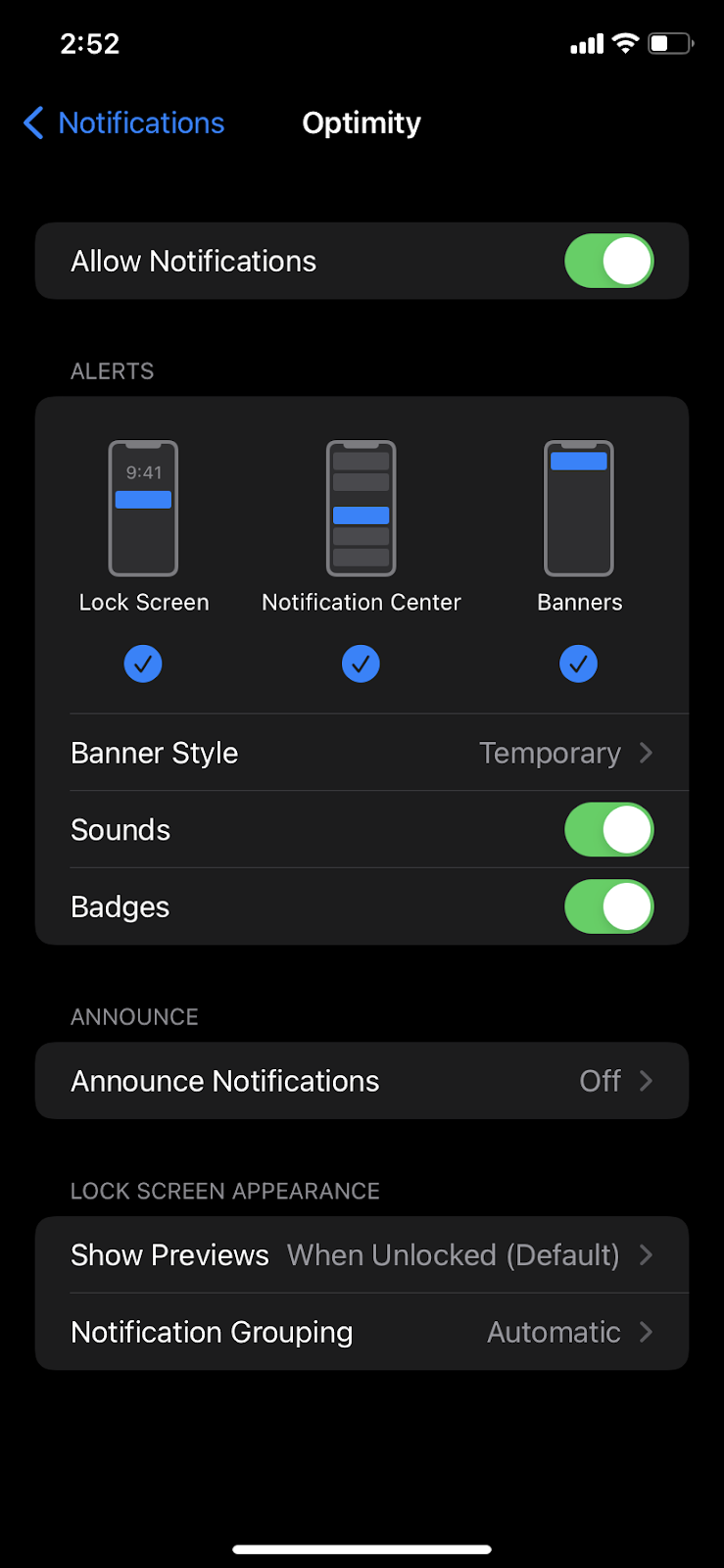
4. From here, you can then modify the notification settings as you see fit
Android:
1. Access your “Settings” app from your device’s home screen

2. Locate and tap on the “Notifications” option within the “Settings” app
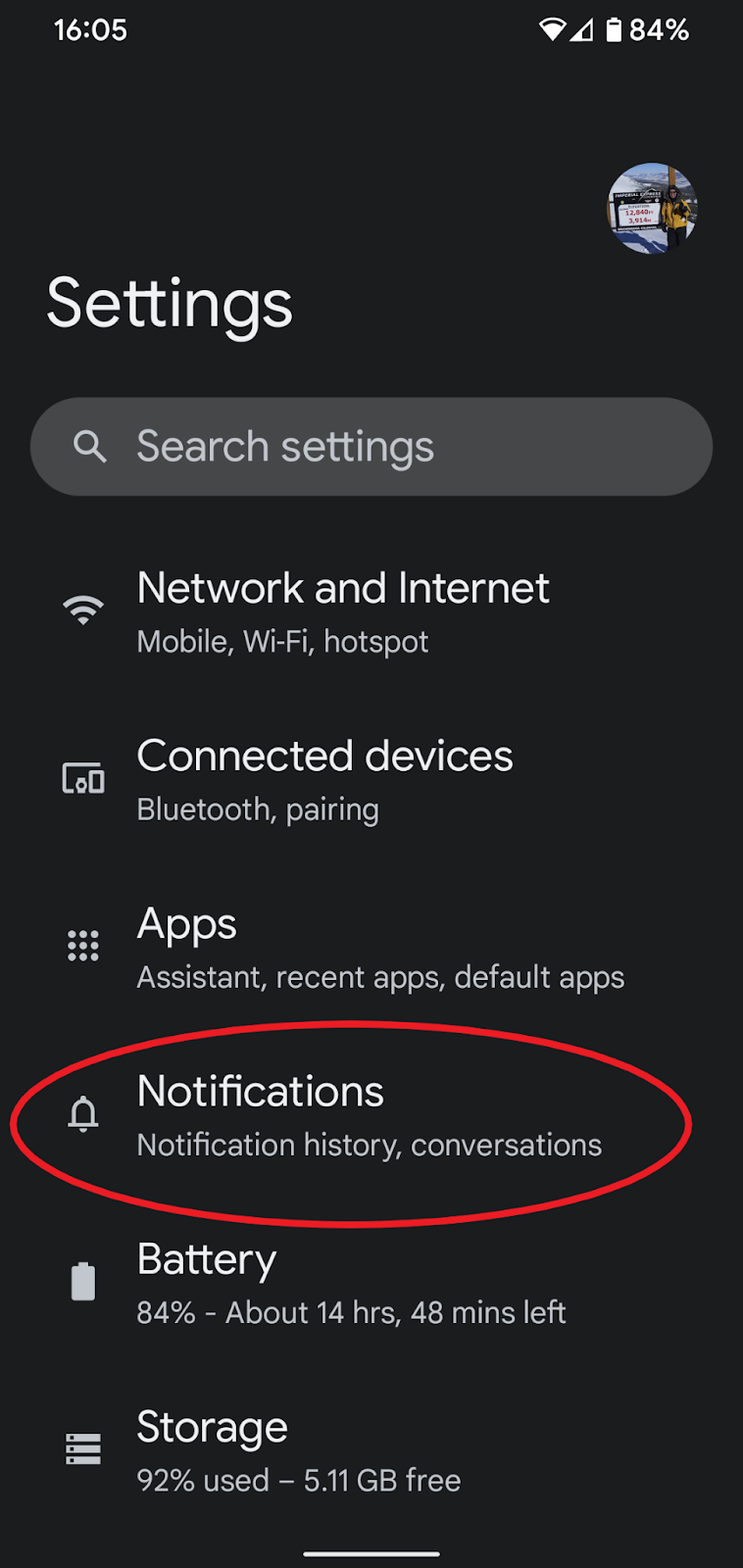
3. Within this section, locate and click on the notification settings for the Optimity app

4. From here, you can then modify the notification settings as you see fit
Modifying specific notifications in the Optimity app:
1. Locate the “Profile” section of your Optimity app, click on your profile picture in the top-left corner of your screen

2. Once here, tap on the “Account” subsection within the “Profile” section
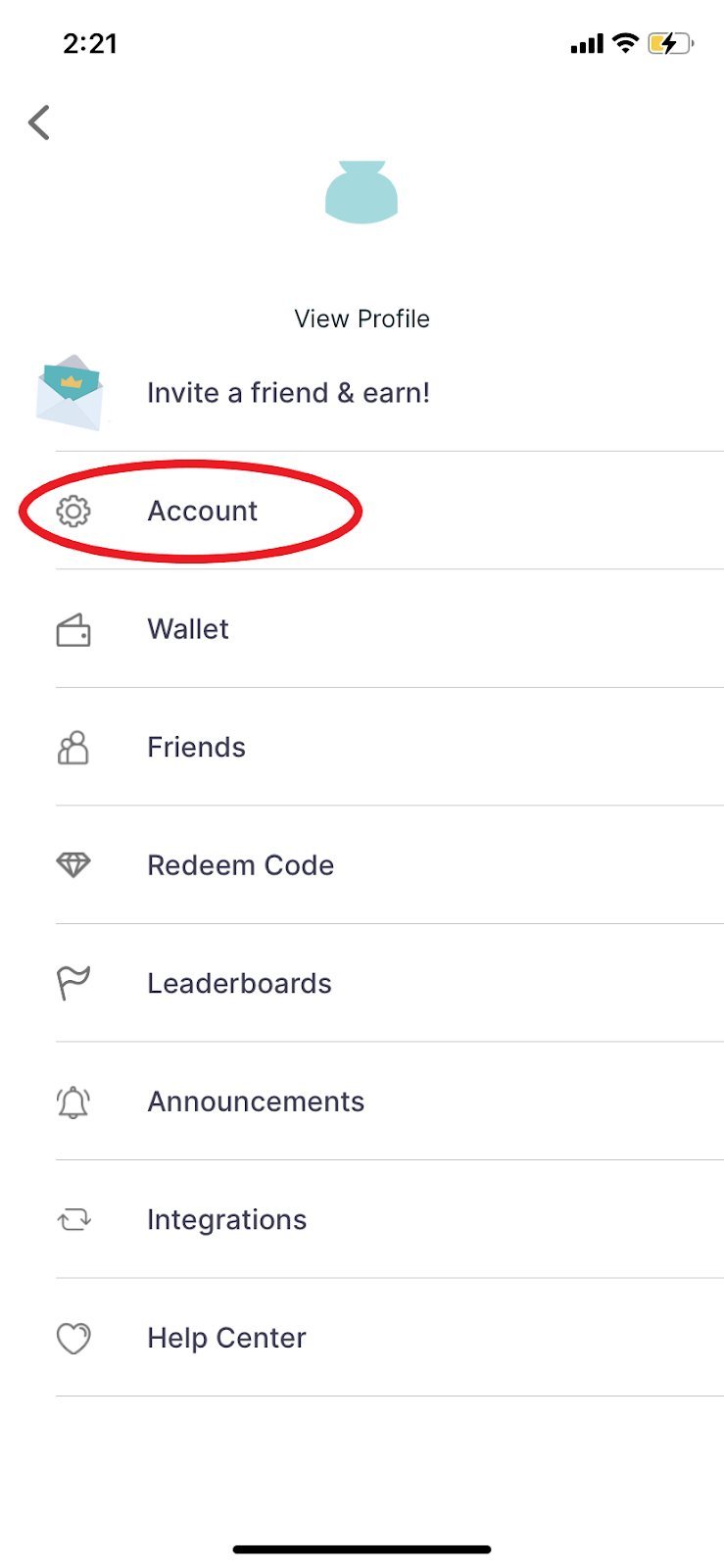
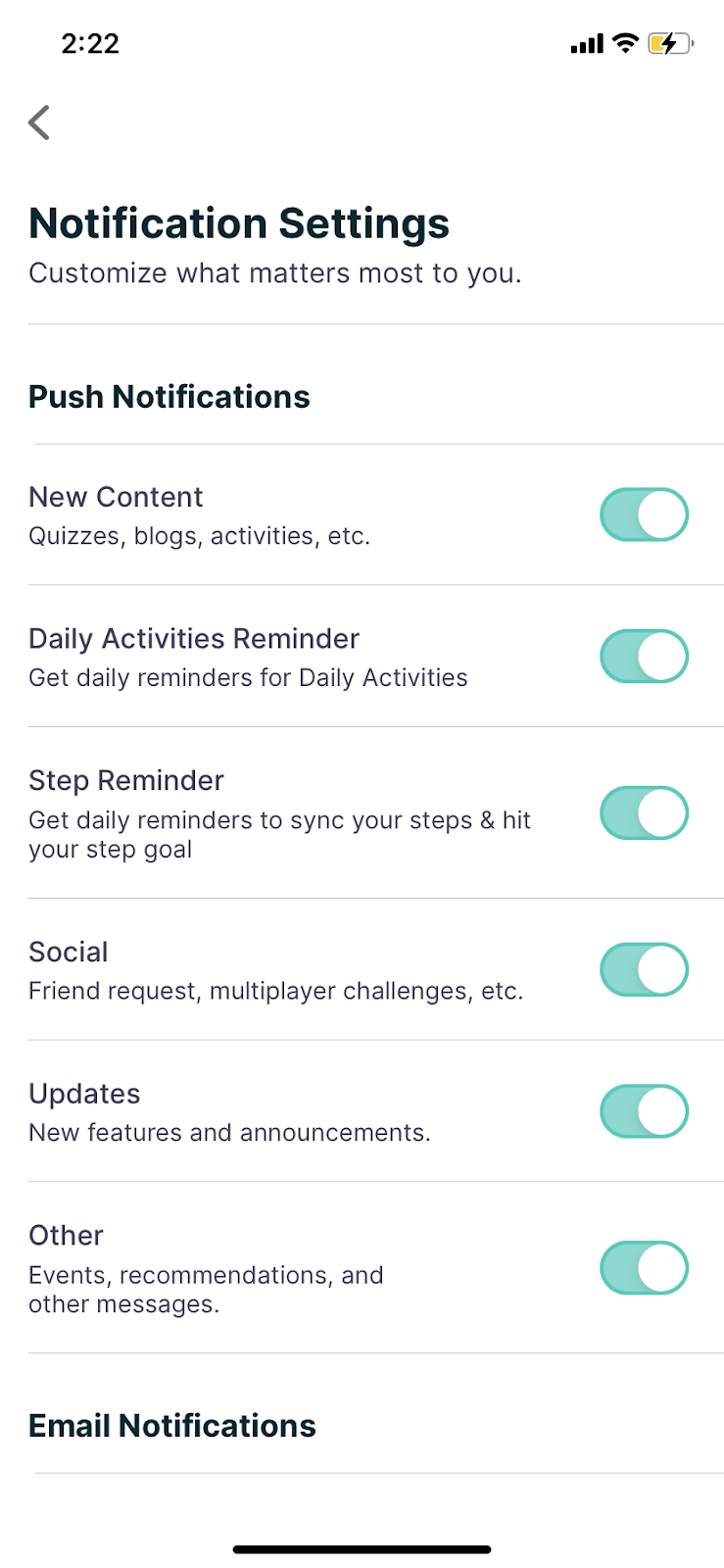
3. Following these steps, scroll down under “Communication” and tap on “Notification Settings”

4. From here, you can choose which Optimity notifications you’d like to receive
Feel free to reach out to Optimity Support at support@myoptimity.com for any further assistance.
Happy Stepping!
Team Optimity
Comments
0 comments
Please sign in to leave a comment.